


How to Extend a Disk on Linux: LVM and Ext4 Step by Step
Your VDS disk got upgraded but the mounted area is still the old size? Safely grow your disk with LVM, parted, and resize2fs.
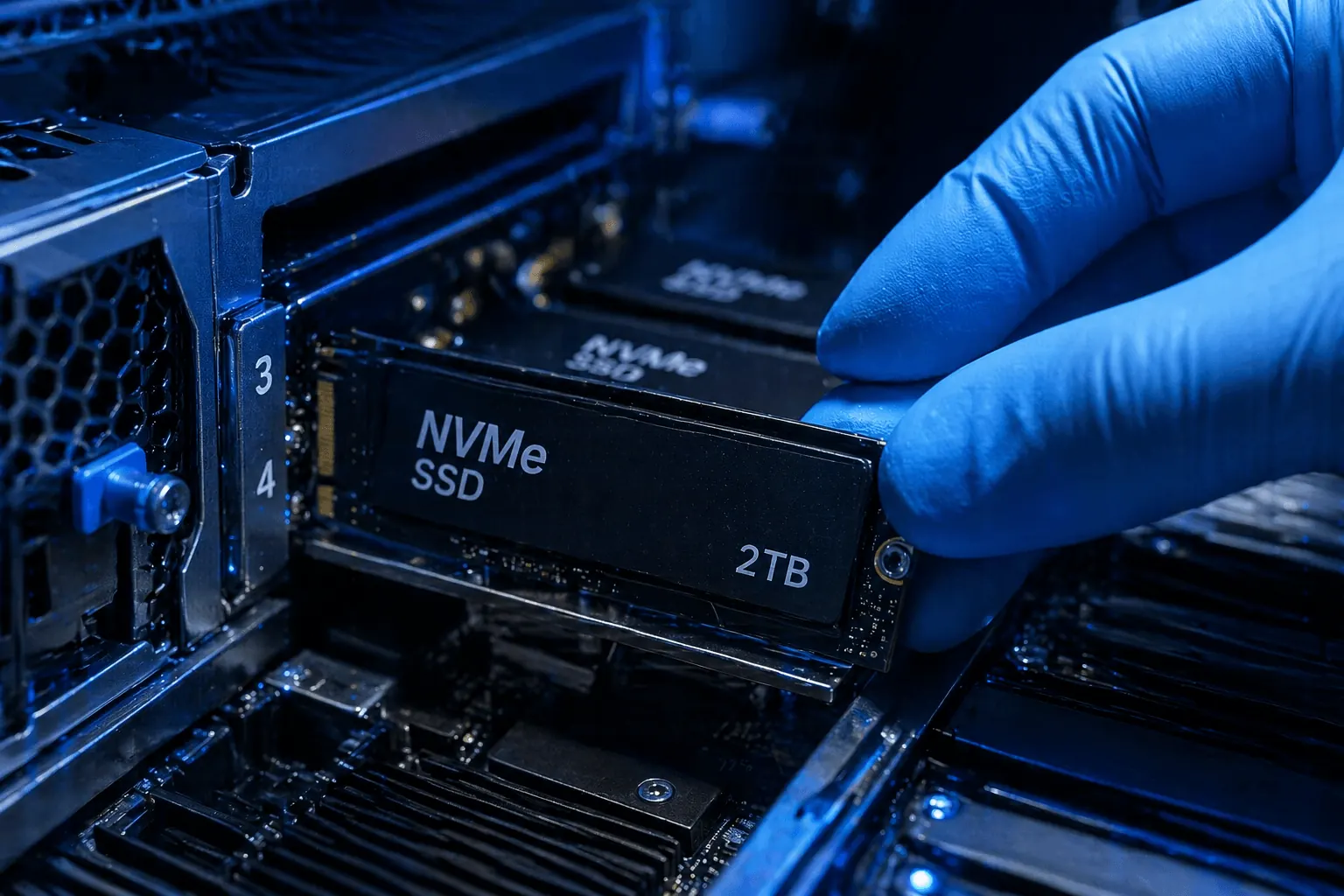
You upgraded your VDS disk in the KavesNET panel, but df -h still shows the old size? The disk grew but the partition + filesystem didn’t. This guide shows how to safely extend LVM and standard ext4 partitions.
First: take a backup
Disk operations are risky. Before continuing, always take a snapshot or at least back up critical data. See our 3-2-1 backup post.
Inspect current state
# Disk size
lsblk

# Mounted area
df -h

# Partition table
sudo fdisk -l /dev/sda
Typical: /dev/sda is 100 GB but /dev/sda1 (root) is still 50 GB.
Method 1: extend with LVM (recommended)
KavesNET servers typically ship Ubuntu/AlmaLinux with LVM. LVM’s biggest win: non-disruptive online resize.
1. Grow the Physical Volume
# If /dev/sda3 is your LVM partition
sudo pvresize /dev/sda3
sudo pvs  # you should see PFree
2. Grow the Logical Volume
sudo lvs  # list existing LVs
sudo lvextend -l +100%FREE /dev/ubuntu-vg/ubuntu-lv
+100%FREE → use all free space.
3. Grow the filesystem
Ext4:
sudo resize2fs /dev/ubuntu-vg/ubuntu-lvXFS:
sudo xfs_growfs /4. Verify
df -hNew size should appear. No reboot needed — done live.
Method 2: without LVM (cloud-init / growpart)
If you don’t have LVM, grow the partition first.
1. Extend partition with growpart
sudo apt install cloud-guest-utils -y  # Ubuntu
sudo dnf install cloud-utils-growpart -y  # AlmaLinux

sudo growpart /dev/sda 1
2. Grow filesystem
# ext4
sudo resize2fs /dev/sda1

# xfs
sudo xfs_growfs /
Method 3: parted manual (legacy)
sudo parted /dev/sda
(parted) print  # show current partitions
(parted) resizepart 1 100%  # extend partition 1 to end of disk
(parted) quit

sudo resize2fs /dev/sda1
⚠️ A power/network failure mid-resize corrupts the filesystem — UPS-backed server or snapshot is essential.
Common errors
- “Couldn’t find valid filesystem superblock”: Partition table corrupted — restore from backup
- “Partition not aligned”: Check with parted’s
align-check optimal 1 pvresizeextends by0: Partition not extended first → run growpart- Read-only filesystem: Filesystem error →
sudo fsck /dev/sda1(unmount first)
Adding a new disk (alternative)
Instead of growing the existing disk, you can add a new one and mount it:
# New disk (e.g. /dev/sdb) should appear
lsblk

# Create partition and filesystem
sudo parted /dev/sdb mklabel gpt mkpart primary ext4 0% 100%
sudo mkfs.ext4 /dev/sdb1

# Mount
sudo mkdir /mnt/data
sudo mount /dev/sdb1 /mnt/data

# Auto-mount via /etc/fstab
echo "/dev/sdb1 /mnt/data ext4 defaults 0 2" | sudo tee -a /etc/fstab
Conclusion
On LVM-enabled servers, disk extension is a 3-command job: pvresize → lvextend → resize2fs. Watch df -h regularly and grow before you fill up.
In KavesNET panel, disk-growth request is auto-completed in ~5 minutes. Then run these commands to grow the filesystem.
Related: Server Backups · SSH Connection
Ähnliche Beiträge
Das könnte Sie auch interessieren.
Die 3-2-1-Backup-Regel: So verlieren Sie Server-Daten nie wieder
Die 3-2-1-Backup-Regel ist der Goldstandard für Server-Backup-Strategien. Wir erläutern Regel, Automation und KavesNETs Backup-Infrastruktur.
Weiterlesen
Site von Plesk zu Plesk migrieren: Migrator-Anleitung
Sites, Mail, DB und DNS in einem Schritt mit Plesk Migrator umziehen. Setup, Testmigration und Cutover.
Weiterlesen
FileZilla: Dateimigration zwischen zwei VDS
Site vom alten zum neuen VDS migrieren: FileZilla über FTP/SFTP, Geschwindigkeitstipps, Berechtigungen und Fehlerbehandlung.
Weiterlesen