


How to Connect to a Server via SSH: PuTTY & OpenSSH Guide
Connect securely to your VDS using PuTTY on Windows and OpenSSH on Linux/Mac. Includes SSH key setup for passwordless login.
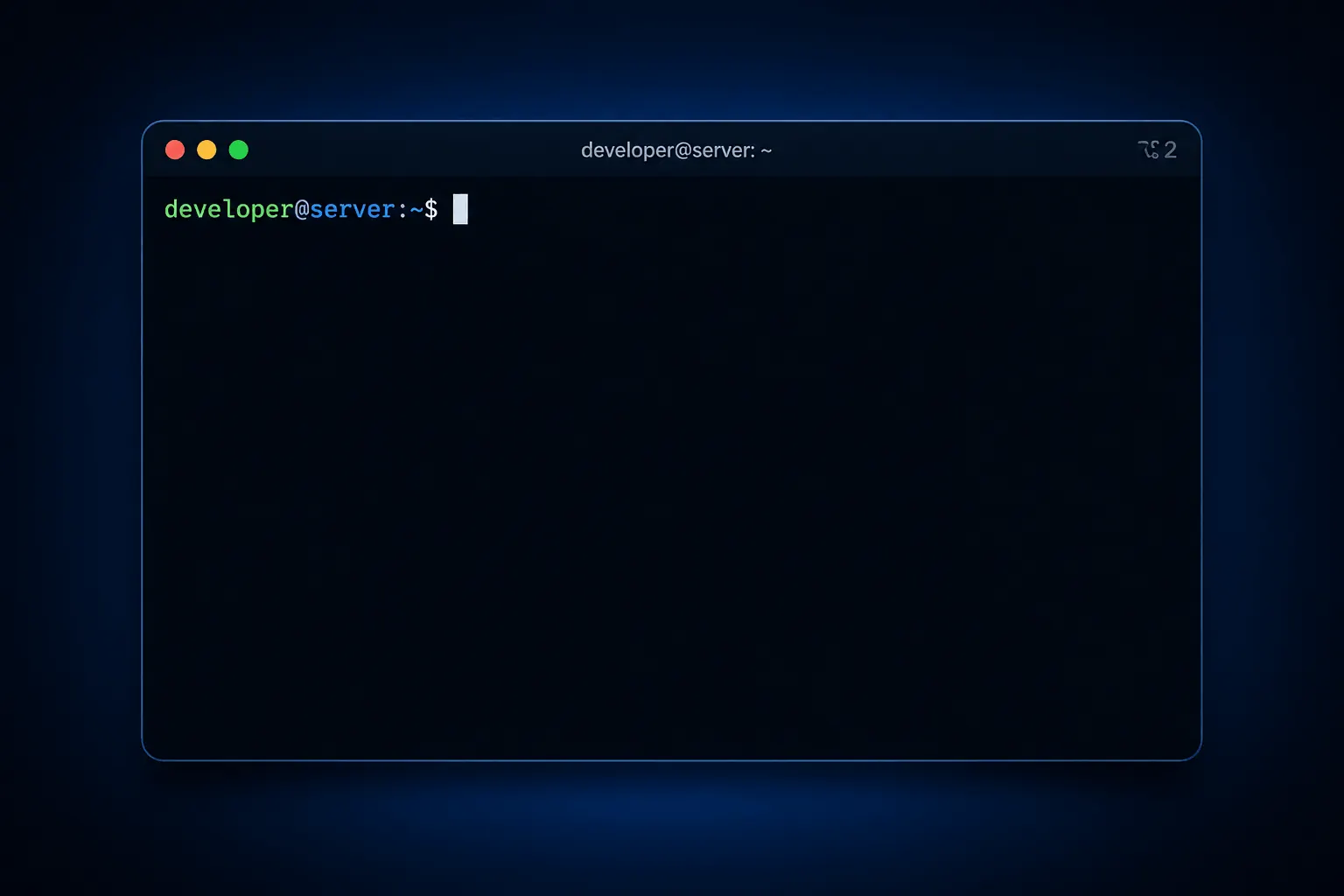
SSH (Secure Shell) is the most common way to manage your VDS. This guide covers connecting with PuTTY on Windows and OpenSSH on Linux/macOS, plus setting up SSH keys.
Connection details
Your KavesNET server delivery email contains:
- IP address (e.g., 192.168.1.100)
- Username (usually
root) - Password
- Port (default 22)
Windows: connect with PuTTY
- putty.org → download putty.exe
- Open → Host Name:
your-IP→ Port:22→ Connection type: SSH → Open - First connection shows “Server’s host key” warning → Accept
- login as:
root→ paste your password (Right-click = paste)
Once connected, the terminal opens and you can run commands.
Linux / macOS: OpenSSH
Built-in. Open Terminal:
ssh [email protected]Custom port:
ssh -p 2222 [email protected]First connection asks for fingerprint → yes. Then password, you’re in.
Passwordless login with SSH keys (recommended)
SSH keys are both more secure and faster than passwords.
1. Generate a key pair (on your local machine)
Linux/macOS:
ssh-keygen -t ed25519 -C "kaves@laptop"
# Enter, Enter (passphrase optional)
Windows (PowerShell or PuTTYgen): Open PuTTYgen → Type: ED25519 → Generate → move mouse → Save private key (.ppk)
2. Copy public key to server
Linux/macOS:
ssh-copy-id [email protected]Manual (when PuTTY or ssh-copy-id isn’t available):
# On the server
mkdir -p ~/.ssh && chmod 700 ~/.ssh
echo "PUBLIC_KEY_CONTENTS" >> ~/.ssh/authorized_keys
chmod 600 ~/.ssh/authorized_keys
3. Test it
ssh [email protected]
# Should connect without asking for a password
In PuTTY: Connection → SSH → Auth → Credentials → Browse → select your .ppk → Save session.
Disable password login (security)
Once SSH keys are working, disable password login:
sudo nano /etc/ssh/sshd_configChange these lines:
PasswordAuthentication no
PermitRootLogin prohibit-password
Save → sudo systemctl restart ssh. Now only SSH keys work — brute-force impossible.
Common errors
- “Connection refused”: SSH service is off or port wrong → on server
sudo systemctl status ssh - “Permission denied (publickey)”: Key not copied to server or wrong user
- “Host key verification failed”: Reinstalled server, fingerprint changed →
ssh-keygen -R 192.168.1.100 - Slow connection: DNS lookup → in
/etc/ssh/sshd_configsetUseDNS no
Pro tips
-
Create an alias in
~/.ssh/config:Host vds HostName 192.168.1.100 User root Port 22 IdentityFile ~/.ssh/id_ed25519Then just
ssh vdsworks. -
Install fail2ban — auto-bans IPs after 5 failed attempts
-
Use a custom port (e.g., 22 → 2222) — reduces bot scans
Conclusion
SSH keys + disabling password auth is the foundation of server security. A 5-minute task for lifetime security.
Related: UFW Firewall · Plesk Installation
相关 文章
您可能也喜欢这些。

The 3-2-1 Backup Rule: How to Never Lose Server Data
The 3-2-1 backup rule is the gold standard for server backup strategy. We cover the rule, automation, and KavesNET's backup infrastructure.
阅读更多
How to Migrate a Site from Plesk to Plesk: Migrator Tool Guide
Move sites, mail, DB, and DNS in one shot with Plesk Migrator. Step-by-step setup, test migration, and cutover.
阅读更多
FileZilla: VDS-to-VDS File Migration Guide
Move your site from old to new VDS: FileZilla over FTP/SFTP, speed tips, permissions, and error handling.
阅读更多