


How to Extend a Disk on Windows Server (Disk Management & DiskPart)
Extend the C: drive on a Windows Server 2019/2022 VDS after a disk upgrade. Both GUI (Disk Management) and PowerShell/DiskPart commands.
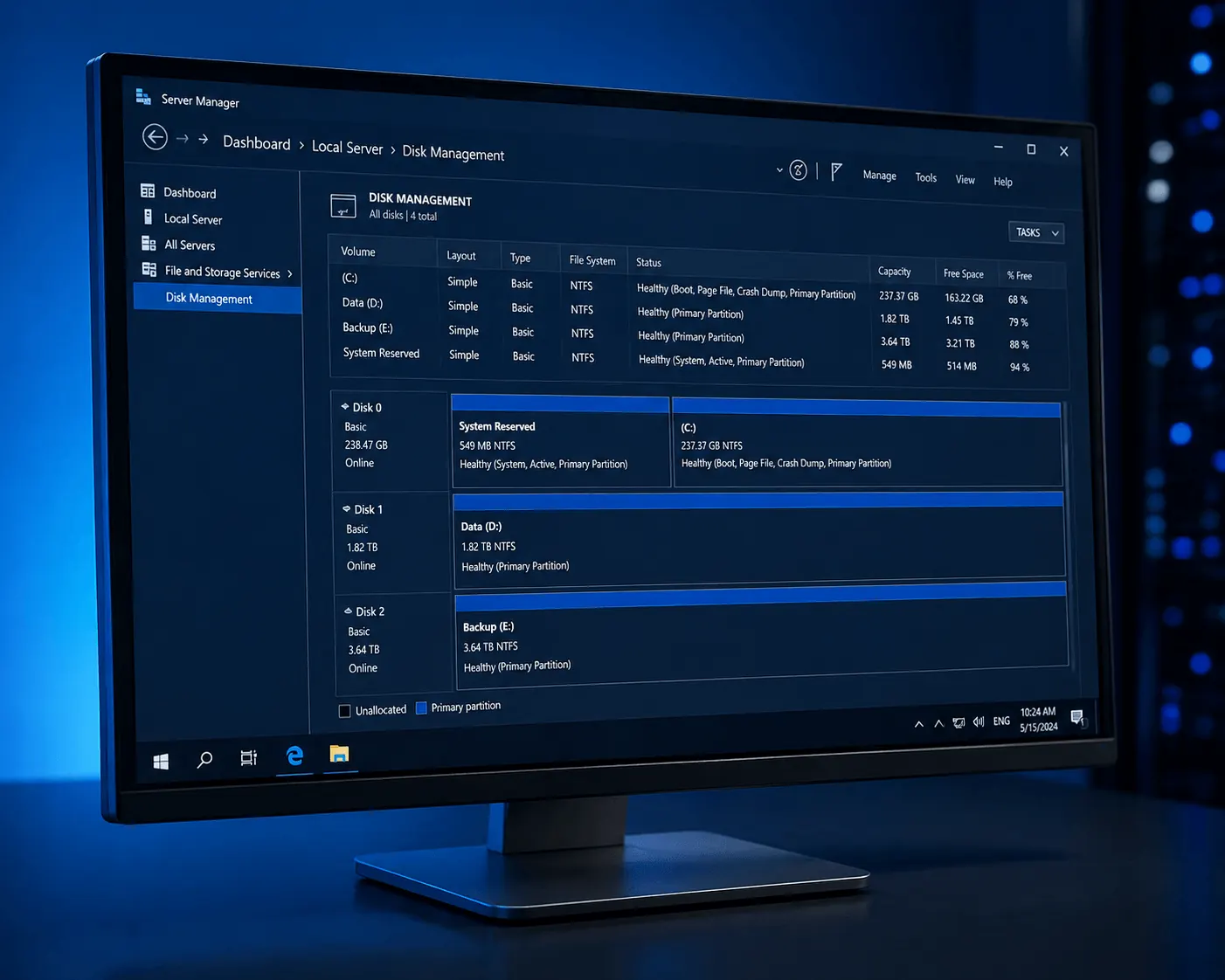
You upgraded the disk on your Windows Server VDS in the KavesNET panel, but C: still shows the old size? The new space is sitting unallocated — a few clicks away. This guide shows both GUI (Disk Management) and PowerShell (DiskPart) methods.
First: backup
Always take a backup/snapshot before disk operations. The KavesNET panel offers snapshots.
Method 1: Disk Management (GUI) — easy way
1. Rescan disks
Win + R → diskmgmt.msc → Enter
From the top menu: Action → Rescan Disks
2. Find the unallocated space
To the right of C: you’ll see new space marked “Unallocated”. If not, rescan again.
3. Extend the C: drive
Right-click C: → Extend Volume…
Wizard:
- Next → select all unallocated → Next → Finish
C: grows to its new size in seconds. No reboot needed, no downtime.
Method 2: DiskPart (CLI) — if no RDP
1. Open PowerShell as administrator
diskpart2. List and select disk
list disk
select disk 0
list partition
3. Select partition and extend
select partition 2     # C: partition (usually 2 or 3)
extend
exit
extend uses all free space. For a specific size: extend size=10240 (10 GB in MB).
Modern PowerShell (cleaner)
Instead of DiskPart:
# Add unallocated to C:
$MaxSize = (Get-PartitionSupportedSize -DriveLetter C).SizeMax
Resize-Partition -DriveLetter C -Size $MaxSize
One line. Scriptable and safer.
Adding a new disk (alternative)
To add a new disk as D: instead of growing C::
- Open Disk Management
- New disk shows as Offline → right-click → Online
- Right-click → Initialize Disk → choose GPT
- Right-click unallocated → New Simple Volume → wizard:
- Drive letter: D:
- Filesystem: NTFS
- Allocation unit: Default
- Quick format
Common errors
- “Extend Volume” greyed out:
- Unallocated space isn’t immediately to the right of C: (another partition is in between — must delete it first)
- Disk is MBR and C: is already 2 TB — needs to be converted to GPT
- “Cannot extend a non-NTFS partition”: For ReFS/FAT32, use 3rd-party tools (AOMEI, EaseUS)
- New space doesn’t appear at all: Disk wasn’t actually grown on hypervisor side — open a KavesNET ticket
- Server’s recovery partition behind C:: Delete that partition first (after backup)
Doing it remotely (no RDP)
If you can’t RDP, open a VNC console from the KavesNET panel and run PowerShell there.
Performance tip
When C: fills, Windows slows down — keep 20 GB+ free especially for Windows Update. A Task Scheduler rule for disk alerts:
# Email if C: > 85%
$threshold = 85
$disk = Get-PSDrive C
$used = [math]::Round((($disk.Used / ($disk.Used + $disk.Free)) * 100), 1)
if ($used -gt $threshold) {
    Send-MailMessage -To "[email protected]" -From "[email protected]" `
        -Subject "Disk full alert: $used%" -SmtpServer "smtp.example.com"
}
For scheduling: see our Cron / Scheduled Task post.
Conclusion
Windows disk extension is a 2-minute job — Disk Management or one PowerShell line. After a KavesNET disk upgrade, you can do it immediately.
Related: Linux Disk Extension · Server Backups
相关 文章
您可能也喜欢这些。
The 3-2-1 Backup Rule: How to Never Lose Server Data
The 3-2-1 backup rule is the gold standard for server backup strategy. We cover the rule, automation, and KavesNET's backup infrastructure.
阅读更多
How to Migrate a Site from Plesk to Plesk: Migrator Tool Guide
Move sites, mail, DB, and DNS in one shot with Plesk Migrator. Step-by-step setup, test migration, and cutover.
阅读更多
FileZilla: VDS-to-VDS File Migration Guide
Move your site from old to new VDS: FileZilla over FTP/SFTP, speed tips, permissions, and error handling.
阅读更多