


SSH ile Sunucuya Nasıl Bağlanılır? PuTTY ve OpenSSH Rehberi
Windows'ta PuTTY, Linux/Mac'te OpenSSH kullanarak VDS sunucuna güvenli bağlantı. SSH key oluşturma ve şifresiz giriş.
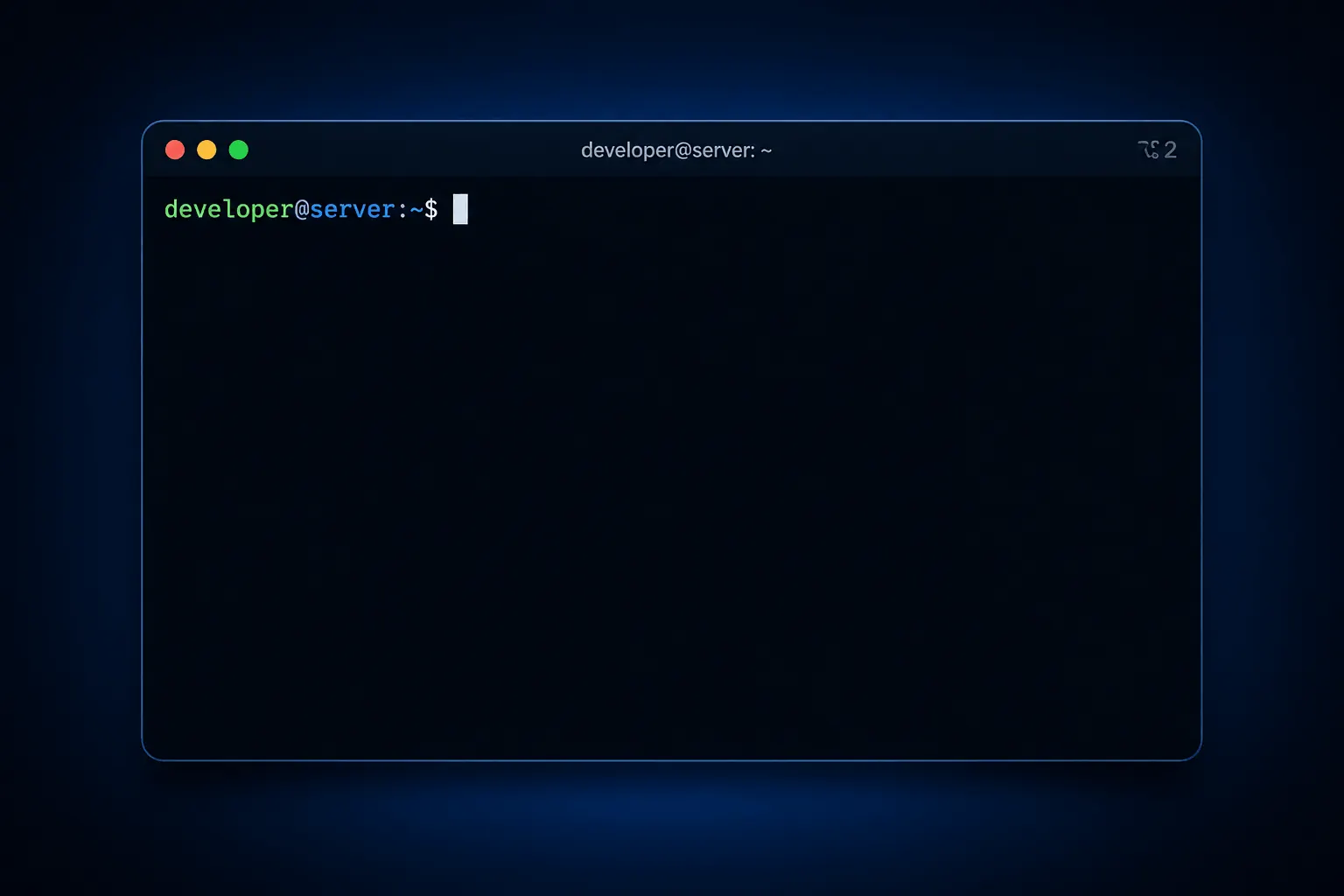
VDS sunucunu yönetmek için SSH (Secure Shell) en yaygın yöntemdir. Bu rehberde Windows’ta PuTTY, Linux/macOS’ta OpenSSH ile bağlanmayı + güvenli SSH key kurulumunu anlatıyoruz.
Bağlantı bilgileri
KavesNET sunucu teslim e-postasında şunlar gelir:
- IP adresi (örn. 192.168.1.100)
- Kullanıcı adı (genelde
root) - Parola
- Port (varsayılan 22)
Windows: PuTTY ile bağlanma
- putty.org → putty.exe indir
- Aç → Host Name:
IP-adresin→ Port:22→ Connection type: SSH → Open - İlk bağlantıda “Server’s host key” uyarısı çıkar → Accept
- login as:
root→ Password: parolanı yapıştır (Sağ tık = paste)
Bağlantı kurulduğunda terminal açılır, komutlar yazabilirsin.
Linux / macOS: OpenSSH
Built-in. Terminal aç:
ssh [email protected]Custom port ise:
ssh -p 2222 [email protected]İlk bağlantıda fingerprint sorulur → yes. Sonra parola girer, açılır.
SSH key ile şifresiz giriş (önerilen)
Parola yerine SSH key kullanmak hem güvenli hem hızlı.
1. Key çifti oluştur (lokal makinende)
Linux/macOS:
ssh-keygen -t ed25519 -C "kaves@laptop"
# Enter, Enter (passphrase opsiyonel)
Windows (PowerShell veya PuTTYgen): PuTTYgen aç → Type: ED25519 → Generate → fareyi gezdir → Save private key (.ppk)
2. Public key’i sunucuya kopyala
Linux/macOS:
ssh-copy-id [email protected]Manuel (PuTTY ya da ssh-copy-id yoksa):
# Sunucuda
mkdir -p ~/.ssh && chmod 700 ~/.ssh
echo "PUBLIC_KEY_İÇERİĞİ" >> ~/.ssh/authorized_keys
chmod 600 ~/.ssh/authorized_keys
3. Test et
ssh [email protected]
# Parola sormadan girmeli
PuTTY’de: Connection → SSH → Auth → Credentials → Browse → .ppk dosyanı seç → Save session.
Parola girişini kapat (güvenlik)
SSH key çalıştığını doğruladıktan sonra parola girişini kapat:
sudo nano /etc/ssh/sshd_configŞu satırları değiştir:
PasswordAuthentication no
PermitRootLogin prohibit-password
Kaydet → sudo systemctl restart ssh. Artık sadece SSH key ile bağlanılabilir, brute-force saldırısı imkansız.
Yaygın hatalar
- “Connection refused”: SSH servisi kapalı veya port yanlış → sunucuda
sudo systemctl status ssh - “Permission denied (publickey)”: Key sunucuya kopyalanmamış veya yanlış kullanıcı altında
- “Host key verification failed”: Sunucuyu reinstall ettin, fingerprint değişti →
ssh-keygen -R 192.168.1.100 - Yavaş bağlantı: DNS lookup →
/etc/ssh/sshd_configiçindeUseDNS no
Pro ipuçları
-
~/.ssh/configile alias yarat:Host vds HostName 192.168.1.100 User root Port 22 IdentityFile ~/.ssh/id_ed25519Sonra sadece
ssh vdsyeter. -
fail2ban kur — başarısız 5 deneme sonrası IP’yi otomatik banlasın
-
Custom port kullan (22 → 2222 gibi) — bot taraması azalır
Sonuç
SSH key + parola kapatılması, sunucu güvenliğinin temeli. 5 dakikalık iş, ömür boyu güvenlik.
İlgili: UFW Firewall · Plesk Kurulumu
Related Posts
You might also like these.

The 3-2-1 Backup Rule: How to Never Lose Server Data
The 3-2-1 backup rule is the gold standard for server backup strategy. We cover the rule, automation, and KavesNET's backup infrastructure.
Read More
How to Migrate a Site from Plesk to Plesk: Migrator Tool Guide
Move sites, mail, DB, and DNS in one shot with Plesk Migrator. Step-by-step setup, test migration, and cutover.
Read More
FileZilla: VDS-to-VDS File Migration Guide
Move your site from old to new VDS: FileZilla over FTP/SFTP, speed tips, permissions, and error handling.
Read More