


Nginx-Installation und Reverse-Proxy-Konfiguration
Nginx von Grund auf installieren, virtuelle Hosts konfigurieren, Reverse Proxy für Node.js / PHP-FPM einrichten. Performance & Sicherheit.
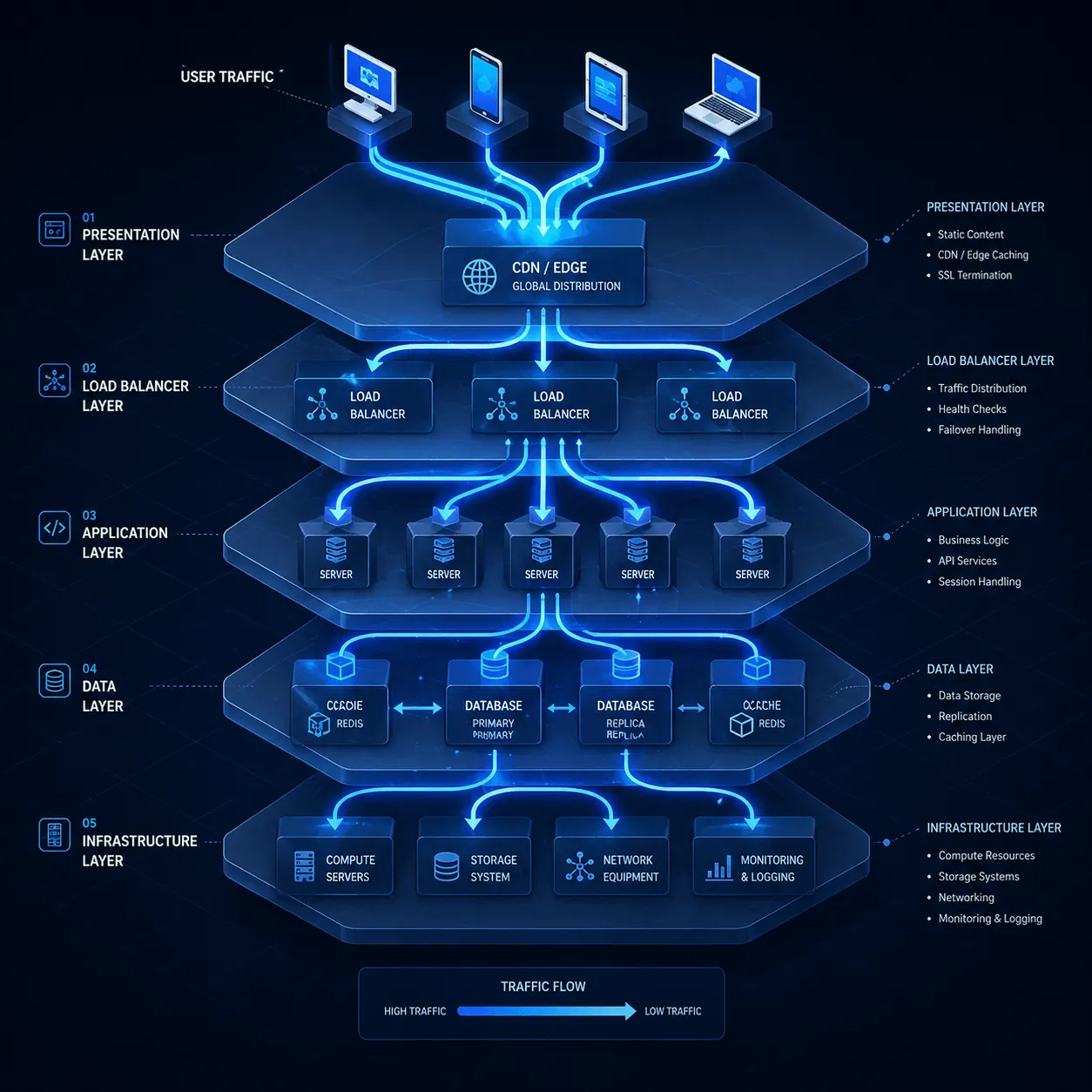
Sie nutzen Nginx statt Apache oder wollen einen Reverse Proxy vor Ihre Node.js-/Python-/Docker-App stellen? Hier richtig. Nginx ist in rund 35% moderner Web-Server im Einsatz — die asynchrone Architektur verbraucht viel weniger Ressourcen als Apache. Diese Anleitung deckt Installation, vhost und Reverse Proxy Schritt für Schritt ab.
Voraussetzungen
- Ubuntu 22.04 / Debian 12 (für AlmaLinux
dnfnutzen) - Root-Zugriff
- Ports 80, 443 offen (UFW-Beitrag)
1. Nginx installieren
sudo apt update
sudo apt install nginx -y
sudo systemctl enable --now nginx
sudo systemctl status nginx
http://vds-ip im Browser → Nginx-Default-Seite.
2. Apache-Konflikt prüfen
Wenn Apache schon läuft, startet Nginx nicht (Port-80-Konflikt):
sudo systemctl stop apache2
sudo systemctl disable apache2
Oder Apache auf 8080 verschieben (advanced).
3. Erster Virtual Host
sudo nano /etc/nginx/sites-available/ihre-site.comserver {
listen 80;
listen [::]:80;
server_name ihre-site.com www.ihre-site.com;
root /var/www/ihre-site.com;
index index.html index.php;
location / {
try_files $uri $uri/ =404;
}
# PHP-FPM (für WordPress)
location ~ \.php$ {
include snippets/fastcgi-php.conf;
fastcgi_pass unix:/var/run/php/php8.3-fpm.sock;
}
# Statische Dateien lange cachen
location ~* \.(jpg|jpeg|png|gif|ico|css|js|woff2)$ {
expires 30d;
add_header Cache-Control "public, no-transform";
}
access_log /var/log/nginx/ihre-site.com_access.log;
error_log /var/log/nginx/ihre-site.com_error.log;
}Aktivieren:
sudo ln -s /etc/nginx/sites-available/ihre-site.com /etc/nginx/sites-enabled/
sudo nginx -t
sudo systemctl reload nginx
4. Reverse Proxy: vor Node.js / Docker
Node.js-App läuft auf Port 3000. Nginx auf 80/443 davor:
server {
    listen 80;
    server_name app.ihre-site.com;

    location / {
        proxy_pass http://localhost:3000;
        proxy_http_version 1.1;
        proxy_set_header Upgrade $http_upgrade;
        proxy_set_header Connection 'upgrade';
        proxy_set_header Host $host;
        proxy_set_header X-Real-IP $remote_addr;
        proxy_set_header X-Forwarded-For $proxy_add_x_forwarded_for;
        proxy_set_header X-Forwarded-Proto $scheme;
        proxy_cache_bypass $http_upgrade;
    }
}
Vorteile:
- WebSocket-Support (
proxy_http_version 1.1+ Upgrade) - SSL-Termination (Let’s Encrypt im Nginx, App bleibt HTTP)
- Statische Dateien serven (Node.js entlasten)
5. SSL hinzufügen
sudo apt install certbot python3-certbot-nginx -y
sudo certbot --nginx -d ihre-site.com -d www.ihre-site.com
Details: Let’s Encrypt-Beitrag.
6. Performance-Tuning
/etc/nginx/nginx.conf:
worker_processes auto;
worker_connections 4096;

client_body_buffer_size 10K;
client_max_body_size 50m;
large_client_header_buffers 4 8k;

gzip on;
gzip_comp_level 6;
gzip_types text/plain text/css text/xml application/json application/javascript application/xml+rss image/svg+xml;

listen 443 ssl http2;
sudo nginx -t && sudo systemctl reload nginx7. Sicherheits-Header
add_header X-Frame-Options "SAMEORIGIN" always;
add_header X-Content-Type-Options "nosniff" always;
add_header X-XSS-Protection "1; mode=block" always;
add_header Strict-Transport-Security "max-age=31536000; includeSubDomains" always;
add_header Referrer-Policy "strict-origin-when-cross-origin" always;
Test: https://securityheaders.com/
8. Rate-Limiting
# In nginx.conf, http-Block
limit_req_zone $binary_remote_addr zone=mylimit:10m rate=10r/s;

# In server-Block
location /api/ {
    limit_req zone=mylimit burst=20 nodelay;
    proxy_pass http://localhost:3000;
}
DDoS-Details: DDoS-Beitrag.
9. Log-Verwaltung
sudo tail -f /var/log/nginx/ihre-site.com_access.log
sudo awk '{print $1}' /var/log/nginx/access.log | sort | uniq -c | sort -rn | head -20
sudo grep " 404 " /var/log/nginx/access.log | tail -20
logrotate ist vorkonfiguriert.
Häufige Fehler
- “bind() to 0.0.0.0:80 failed”: Apache läuft → stoppen
- “502 Bad Gateway”: Backend down →
systemctl status node-app - “413 Request Entity Too Large”:
client_max_body_sizeerhöhen - “504 Gateway Timeout”:
proxy_read_timeout 300s; - PHP läuft nicht: PHP-FPM aktiv?
sudo systemctl status php8.3-fpm
Nginx vs Apache
| Nginx | Apache | |
|---|---|---|
| Architektur | async, event-driven | process-based |
| Ressourcen | weniger RAM/CPU | mehr |
| Statisch | sehr schnell | schnell |
| .htaccess | ❌ | ✓ |
| Reverse Proxy | nativ | via mod_proxy |
Beide funktionieren für WordPress; Nginx ist bei hohem Traffic effizienter.
Fazit
Nginx ist Eckpfeiler des modernen Web-Stacks. Auf einem VDS mehrere Sites + Reverse Proxy + SSL-Termination. KavesNET VDS ist für Nginx optimiert.
Verwandt: WordPress manuell installieren · Cloudflare CDN
Ähnliche Beiträge
Das könnte Sie auch interessieren.

Die 3-2-1-Backup-Regel: So verlieren Sie Server-Daten nie wieder
Die 3-2-1-Backup-Regel ist der Goldstandard für Server-Backup-Strategien. Wir erläutern Regel, Automation und KavesNETs Backup-Infrastruktur.
Weiterlesen
Site von Plesk zu Plesk migrieren: Migrator-Anleitung
Sites, Mail, DB und DNS in einem Schritt mit Plesk Migrator umziehen. Setup, Testmigration und Cutover.
Weiterlesen
FileZilla: Dateimigration zwischen zwei VDS
Site vom alten zum neuen VDS migrieren: FileZilla über FTP/SFTP, Geschwindigkeitstipps, Berechtigungen und Fehlerbehandlung.
Weiterlesen