


WordPress Manual Installation: Full Guide for Setting Up on a VDS
Install WordPress on your VDS without a control panel. Apache/Nginx, PHP, MySQL, file permissions, and security steps.
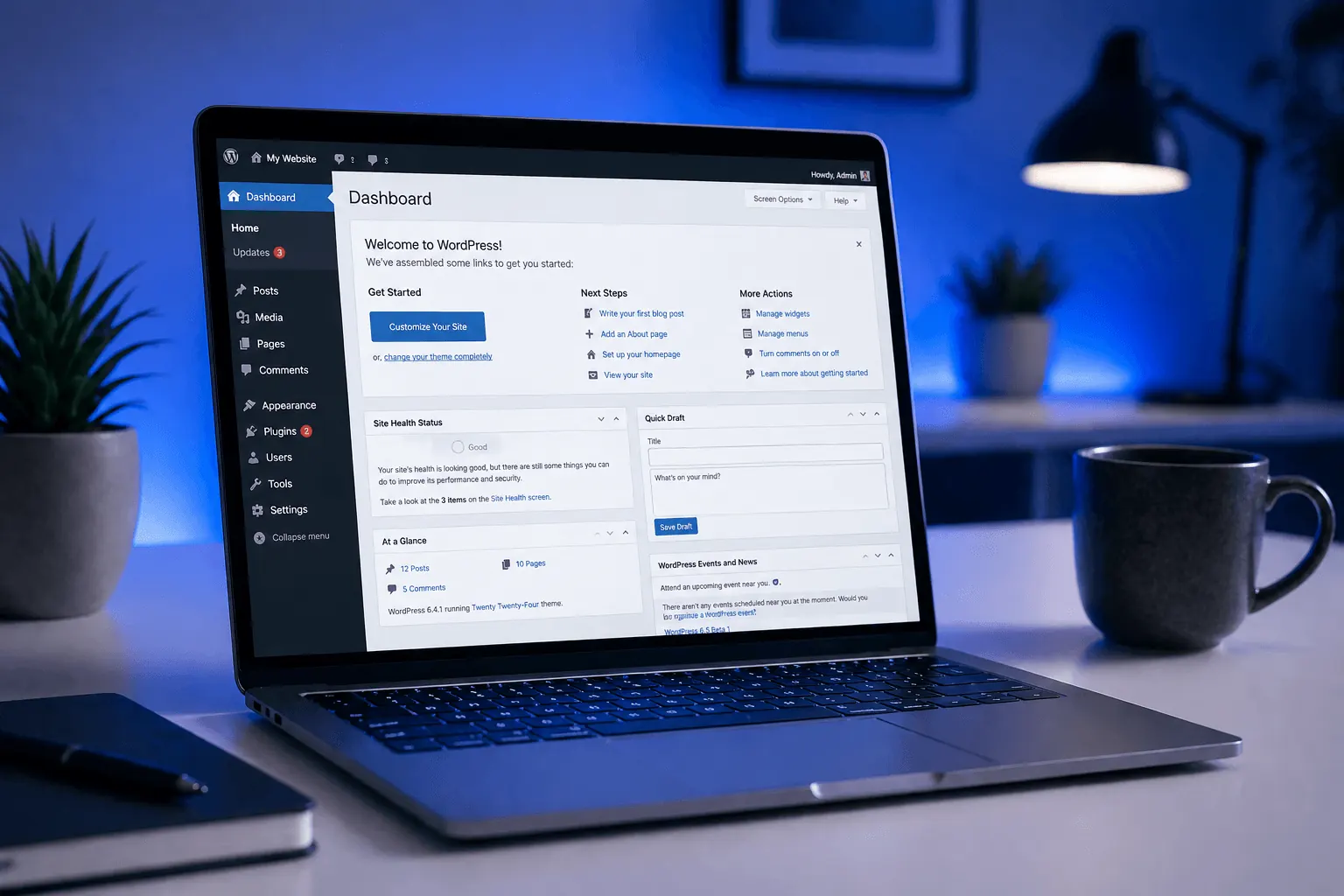
Want to install WordPress on your VDS from scratch without Plesk/cPanel? This guide covers Ubuntu 22.04 LAMP/LEMP stack prep, placing WordPress files, creating a MySQL database, and security steps.
Prerequisites
- 2 vCPU + 2 GB RAM VDS (entry-level for WordPress)
- Ubuntu 22.04 / Debian 12
- Root access (
sudo) - Domain’s DNS A record points to VDS IP
1. Update the system
sudo apt update && sudo apt upgrade -y2. Install LAMP stack (Apache + MySQL + PHP)
For LEMP (Nginx), see our Nginx post.
sudo apt install apache2 mysql-server -y

# PHP 8.3 + WordPress required modules
sudo apt install php8.3 php8.3-fpm php8.3-mysql php8.3-curl php8.3-gd \
    php8.3-mbstring php8.3-xml php8.3-zip php8.3-imagick libapache2-mod-php8.3 -y
sudo systemctl enable --now apache2 mysql3. Secure MySQL
sudo mysql_secure_installation- Set root password
- Anonymous users → Yes (delete)
- Remote root login → Yes (block)
- Test database → Yes (delete)
For detailed MySQL ops, see our MariaDB/MySQL post.
4. Create database for WordPress
sudo mysql -u root -pCREATE DATABASE wordpress_db CHARACTER SET utf8mb4 COLLATE utf8mb4_unicode_ci;
CREATE USER 'wp_user'@'localhost' IDENTIFIED BY 'STRONG_PASSWORD_HERE';
GRANT ALL PRIVILEGES ON wordpress_db.* TO 'wp_user'@'localhost';
FLUSH PRIVILEGES;
EXIT;5. Download WordPress
cd /tmp
wget https://wordpress.org/latest.tar.gz
tar -xzf latest.tar.gz
sudo mv wordpress /var/www/yoursite.com
For multi-site, use separate folders like /var/www/site2.com.
6. Set file permissions
sudo chown -R www-data:www-data /var/www/yoursite.com
sudo find /var/www/yoursite.com -type d -exec chmod 755 {} \;
sudo find /var/www/yoursite.com -type f -exec chmod 644 {} \;
Write access for wp-content/uploads:
sudo chmod -R 775 /var/www/yoursite.com/wp-content7. Configure Apache vhost
sudo nano /etc/apache2/sites-available/yoursite.com.conf<VirtualHost *:80>
ServerName yoursite.com
ServerAlias www.yoursite.com
DocumentRoot /var/www/yoursite.com
<Directory /var/www/yoursite.com>
AllowOverride All
Require all granted
</Directory>
ErrorLog ${APACHE_LOG_DIR}/yoursite.com_error.log
CustomLog ${APACHE_LOG_DIR}/yoursite.com_access.log combined
</VirtualHost>sudo a2enmod rewrite
sudo a2ensite yoursite.com.conf
sudo a2dissite 000-default.conf
sudo systemctl reload apache28. Configure wp-config.php
cd /var/www/yoursite.com
sudo cp wp-config-sample.php wp-config.php
sudo nano wp-config.php
Edit:
define( 'DB_NAME', 'wordpress_db' );
define( 'DB_USER', 'wp_user' );
define( 'DB_PASSWORD', 'STRONG_PASSWORD_HERE' );
define( 'DB_HOST', 'localhost' );
For authentication keys: https://api.wordpress.org/secret-key/1.1/salt/ → copy the output, paste into the matching section in wp-config.php.
9. Install SSL
Mandatory — see our Let’s Encrypt post:
sudo apt install certbot python3-certbot-apache -y
sudo certbot --apache -d yoursite.com -d www.yoursite.com
10. Finish install in browser
Open https://yoursite.com:
- Pick language → Continue
- Site Title, admin Username, Password, Email → Install WordPress
WordPress is ready in 5 seconds.
Post-install security
- Don’t use “admin” as username (default brute-force target)
- Restrict wp-admin via firewall — only your IP (UFW post)
- Disable XML-RPC — WP becomes a DDoS attack vehicle
- Install 2FA plugin: Wordfence Login Security
- Enable auto-updates:
wp-config.php→define('WP_AUTO_UPDATE_CORE', 'minor'); - Cron-based backups: without Plesk, write your own (cron post)
Performance tuning
- Enable OPcache:
php.ini→opcache.enable=1 - Object cache: install Redis, connect via
redis-cli - Cache plugin: WP Rocket / LiteSpeed Cache
- CDN: Cloudflare post
For detailed performance, see our WordPress Hosting post.
Common errors
- “Error establishing database connection”: wrong DB info in
wp-config.phpor MySQL service down - 404 Not Found (permalinks):
mod_rewritenot enabled →sudo a2enmod rewrite - White screen of death: PHP error →
tail -f /var/log/apache2/error.log - “Allowed memory size exhausted”: in
wp-config.phpadddefine('WP_MEMORY_LIMIT', '256M'); - Image upload failure:
wp-content/uploadspermissions wrong
Conclusion
Manual install is a 20-minute task but gives full control — Plesk needs an extra license; manual is free. Production WordPress with manual install + nginx-proxy + Let’s Encrypt + Cloudflare = the fastest stack.
KavesNET VDS plans are NVMe-SSD optimized for WordPress.
Related: WordPress Hosting Guide · MySQL/MariaDB Management
Related Posts
You might also like these.

The 3-2-1 Backup Rule: How to Never Lose Server Data
The 3-2-1 backup rule is the gold standard for server backup strategy. We cover the rule, automation, and KavesNET's backup infrastructure.
Read More
How to Migrate a Site from Plesk to Plesk: Migrator Tool Guide
Move sites, mail, DB, and DNS in one shot with Plesk Migrator. Step-by-step setup, test migration, and cutover.
Read More
FileZilla: VDS-to-VDS File Migration Guide
Move your site from old to new VDS: FileZilla over FTP/SFTP, speed tips, permissions, and error handling.
Read More