


WordPress Manual Installation: Full Guide for Setting Up on a VDS
Install WordPress on your VDS without a control panel. Apache/Nginx, PHP, MySQL, file permissions, and security steps.
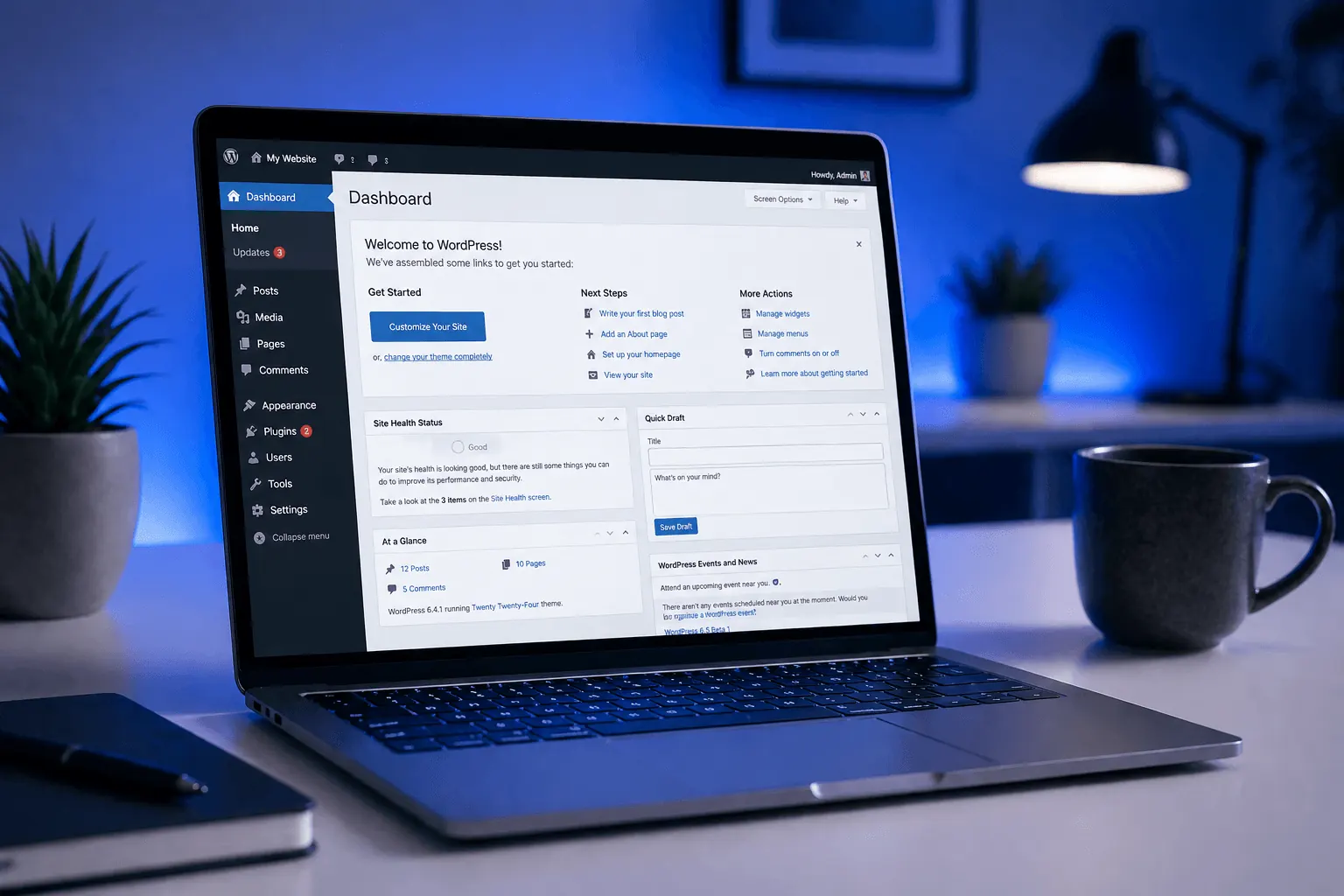
Want to install WordPress on your VDS from scratch without Plesk/cPanel? This guide covers Ubuntu 22.04 LAMP/LEMP stack prep, placing WordPress files, creating a MySQL database, and security steps.
Prerequisites
- 2 vCPU + 2 GB RAM VDS (entry-level for WordPress)
- Ubuntu 22.04 / Debian 12
- Root access (
sudo) - Domain’s DNS A record points to VDS IP
1. Update the system
sudo apt update && sudo apt upgrade -y2. Install LAMP stack (Apache + MySQL + PHP)
For LEMP (Nginx), see our Nginx post.
sudo apt install apache2 mysql-server -y

# PHP 8.3 + WordPress required modules
sudo apt install php8.3 php8.3-fpm php8.3-mysql php8.3-curl php8.3-gd \
    php8.3-mbstring php8.3-xml php8.3-zip php8.3-imagick libapache2-mod-php8.3 -y
sudo systemctl enable --now apache2 mysql3. Secure MySQL
sudo mysql_secure_installation- Set root password
- Anonymous users → Yes (delete)
- Remote root login → Yes (block)
- Test database → Yes (delete)
For detailed MySQL ops, see our MariaDB/MySQL post.
4. Create database for WordPress
sudo mysql -u root -pCREATE DATABASE wordpress_db CHARACTER SET utf8mb4 COLLATE utf8mb4_unicode_ci;
CREATE USER 'wp_user'@'localhost' IDENTIFIED BY 'STRONG_PASSWORD_HERE';
GRANT ALL PRIVILEGES ON wordpress_db.* TO 'wp_user'@'localhost';
FLUSH PRIVILEGES;
EXIT;5. Download WordPress
cd /tmp
wget https://wordpress.org/latest.tar.gz
tar -xzf latest.tar.gz
sudo mv wordpress /var/www/yoursite.com
For multi-site, use separate folders like /var/www/site2.com.
6. Set file permissions
sudo chown -R www-data:www-data /var/www/yoursite.com
sudo find /var/www/yoursite.com -type d -exec chmod 755 {} \;
sudo find /var/www/yoursite.com -type f -exec chmod 644 {} \;
Write access for wp-content/uploads:
sudo chmod -R 775 /var/www/yoursite.com/wp-content7. Configure Apache vhost
sudo nano /etc/apache2/sites-available/yoursite.com.conf<VirtualHost *:80>
ServerName yoursite.com
ServerAlias www.yoursite.com
DocumentRoot /var/www/yoursite.com
<Directory /var/www/yoursite.com>
AllowOverride All
Require all granted
</Directory>
ErrorLog ${APACHE_LOG_DIR}/yoursite.com_error.log
CustomLog ${APACHE_LOG_DIR}/yoursite.com_access.log combined
</VirtualHost>sudo a2enmod rewrite
sudo a2ensite yoursite.com.conf
sudo a2dissite 000-default.conf
sudo systemctl reload apache28. Configure wp-config.php
cd /var/www/yoursite.com
sudo cp wp-config-sample.php wp-config.php
sudo nano wp-config.php
Edit:
define( 'DB_NAME', 'wordpress_db' );
define( 'DB_USER', 'wp_user' );
define( 'DB_PASSWORD', 'STRONG_PASSWORD_HERE' );
define( 'DB_HOST', 'localhost' );
For authentication keys: https://api.wordpress.org/secret-key/1.1/salt/ → copy the output, paste into the matching section in wp-config.php.
9. Install SSL
Mandatory — see our Let’s Encrypt post:
sudo apt install certbot python3-certbot-apache -y
sudo certbot --apache -d yoursite.com -d www.yoursite.com
10. Finish install in browser
Open https://yoursite.com:
- Pick language → Continue
- Site Title, admin Username, Password, Email → Install WordPress
WordPress is ready in 5 seconds.
Post-install security
- Don’t use “admin” as username (default brute-force target)
- Restrict wp-admin via firewall — only your IP (UFW post)
- Disable XML-RPC — WP becomes a DDoS attack vehicle
- Install 2FA plugin: Wordfence Login Security
- Enable auto-updates:
wp-config.php→define('WP_AUTO_UPDATE_CORE', 'minor'); - Cron-based backups: without Plesk, write your own (cron post)
Performance tuning
- Enable OPcache:
php.ini→opcache.enable=1 - Object cache: install Redis, connect via
redis-cli - Cache plugin: WP Rocket / LiteSpeed Cache
- CDN: Cloudflare post
For detailed performance, see our WordPress Hosting post.
Common errors
- “Error establishing database connection”: wrong DB info in
wp-config.phpor MySQL service down - 404 Not Found (permalinks):
mod_rewritenot enabled →sudo a2enmod rewrite - White screen of death: PHP error →
tail -f /var/log/apache2/error.log - “Allowed memory size exhausted”: in
wp-config.phpadddefine('WP_MEMORY_LIMIT', '256M'); - Image upload failure:
wp-content/uploadspermissions wrong
Conclusion
Manual install is a 20-minute task but gives full control — Plesk needs an extra license; manual is free. Production WordPress with manual install + nginx-proxy + Let’s Encrypt + Cloudflare = the fastest stack.
KavesNET VDS plans are NVMe-SSD optimized for WordPress.
Related: WordPress Hosting Guide · MySQL/MariaDB Management
İlgili Yazılar
Bunlar da ilgini çekebilir.

3-2-1 Yedekleme Kuralı: Sunucu Verilerini Asla Kaybetmemenin Yolu
3-2-1 yedekleme kuralı, kurumsal sunucu yedekleme stratejisinin altın standardıdır. Bu yazıda kuralı, otomasyon yöntemlerini ve KavesNET yedek altyapısını anlatıyoruz.
Devamını Oku
Plesk'ten Plesk'e Site Nasıl Taşınır? Migrator Aracı Rehberi
Plesk Migrator ile site, mail, DB ve DNS'i tek seferde yeni sunucuya taşı. Adım adım kurulum, migration test ve cutover.
Devamını Oku
FileZilla ile VDS'ten VDS'e Dosya Taşıma Rehberi
Eski sunucudan yeni VDS'e siteni taşı: FileZilla ile FTP/SFTP, hız ipuçları, izin ayarları ve hata kontrolü.
Devamını Oku